
Prepare an Image for a Cutting Workflow
Choose the receiving application and operation first. SVG geometry, a printed image, a pen centerline and machine instructions solve different tasks.
Steps
- 1
Identify the receiving application, installed edition, operation and intended physical size.
- 2
Use existing paths when available; trace a supported raster only if the task needs geometry.
- 3
After authorized SVG export, inspect the import, dimensions, holes and operation assignments.
- 4
Follow the selected machine and material workflow for preview and testing.
Start with the operation, not the extension
Choose the preparation branch
- Intended result
- Cut an outline from flat clipart
- Artwork to inspect
- Closed boundaries, holes, separate pieces and physical size
- Next task
- Check supported imports in your cutter application.
- Intended result
- Print an image and cut its border
- Artwork to inspect
- Printable image and intended cut boundary
- Next task
- Use the application’s Print Then Cut procedure.
- Intended result
- Draw a line with a pen
- Artwork to inspect
- Single line or deliberately outlined stroke
- Next task
- Assign a draw operation; inspect whether the import has one path or two edges.
- Intended result
- Laser cut or engrave
- Artwork to inspect
- Geometry or raster according to the operation
- Next task
- Assign settings in the receiving laser software.
- Intended result
- Embroidery or CAM
- Artwork to inspect
- Design reference for digitizing or toolpath preparation
- Next task
- Create stitch or machine data separately. SVG alone is not that data.
| Intended result | Artwork to inspect | Next task |
|---|---|---|
| Cut an outline from flat clipart | Closed boundaries, holes, separate pieces and physical size | Check supported imports in your cutter application. |
| Print an image and cut its border | Printable image and intended cut boundary | Use the application’s Print Then Cut procedure. |
| Draw a line with a pen | Single line or deliberately outlined stroke | Assign a draw operation; inspect whether the import has one path or two edges. |
| Laser cut or engrave | Geometry or raster according to the operation | Assign settings in the receiving laser software. |
| Embroidery or CAM | Design reference for digitizing or toolpath preparation | Create stitch or machine data separately. SVG alone is not that data. |
Trace flat clipart only when paths are needed
Confirm that you have rights to modify the clipart and use the derivative in the intended project. A file download or trace does not grant that permission. If you already have usable vector paths, inspect them instead of rasterizing and tracing again.
For raster clipart, remove unrelated surroundings and compare small holes, isolated pieces and boundaries in a protected preview. Vectorize accepts PNG, JPEG or WebP and performs automatic tracing; it does not expose Isolated Color or Black and White mode selectors. Editable SVG requires authorization and downstream inspection. Raster input can also be imported or traced in some receiving applications; it is not inherently unusable for a cutting workflow.
Cricut: inspect layers and assign operations
Cricut’s desktop upload guide documents SVG upload and grouped vector layers. Inspect the imported artwork, ungroup when you need to work on individual layers, and assign the intended operations. Imported vectors are cut lines; draw or score requires explicit assignment. Follow the platform-specific instructions rather than assuming the mobile flow is identical: https://help.cricut.com/hc/en-us/articles/360009556313-How-to-upload-images-into-Design-Space
Cricut documents unsupported SVG content including editable text, clipping paths and embedded raster imagery. Resolve these deliberately or use an appropriate raster Print Then Cut workflow: https://help.cricut.com/hc/en-us/articles/360009553213-Image-uploads-unsupported-items
Group is an editing convenience; Attach preserves placement for making the project and associates draw/score with cut layers. Check the preparation preview after assigning operations: https://help.cricut.com/hc/en-us/articles/26751604105879-Canvas-screen-Design-Space-Guide
Silhouette: verify the exact edition before import
Silhouette’s current File Types and Features support page lists SVG import for Designer Edition and above. Confirm the installed version and edition; no purchase recommendation or installed import test is implied: https://silhouetteamerica.freshdesk.com/support/solutions/articles/35000282776-file-types-and-features
If your edition supports SVG, inspect dimensions, groups and selectable paths after import, then check the cut-line assignment in its sending workflow. If SVG cannot be opened, use the format or raster-tracing workflow documented for that edition, or resolve the edition question before spending money. Renaming a file does not add support.
Other receivers and the final geometry check
LightBurn documents multiple vector and mixed import formats, including SVG, but geometry import does not preserve or create cut settings. Inspect the imported dimensions and assign the intended operation in LightBurn: https://docs.lightburnsoftware.com/latest/Reference/FileManagement/
For stitch work, Ink/Stitch separates SVG preparation, parameters, stitch ordering, simulation and machine-format output: https://inkstitch.org/docs/workflow/
Illustrative example: a clipart flower can show a complete colored fill while one intended cut contour is open. Check actual endpoints and holes, not just the colored thumbnail. Set the intended physical size before judging whether a thin stem or small island is practical. Feature limits, test cuts and material settings belong to the selected machine and material; there is no universal minimum width.
Silhouette receiving checks: Resolve edition and version before changing the file
Silhouette’s File Types and Features support page, modified August 13, 2025 and checked September 18, 2026, lists SVG import for Designer Edition and higher. Its Basic list includes DXF and raster formats. Confirm the installed edition and version before choosing a handoff; this documentation is not a test of your installation or a recommendation to purchase an upgrade. Source: https://silhouetteamerica.freshdesk.com/support/solutions/articles/35000282776-file-types-and-features
Record the installed version and edition, and check the import options and support information for that installation. If SVG import is unavailable, confirm a supported handoff format with the application’s current documentation or support before converting a copy. A machine model name alone does not settle this software question.
Silhouette receiving checks: Choose existing vectors or a JPG tracing branch
Keep an existing SVG when it already has usable paths. If the source is a JPG, retain the highest-quality original and inspect compression halos around edges. Vectorize accepts PNG, JPEG and WebP for protected preview and provides SVG after authorization; compare that geometry with the original before importing it elsewhere. It does not produce a Silhouette project or tested material settings.
For a receiving application that supports SVG import, existing vector geometry does not need a raster retrace merely because it came from another editor. It still needs dimension, contour and operation review. Do not assume every converted file is immediately ready for cutting.
Silhouette receiving checks: Check appearance and Send actions independently
Import and preparation checks
- Check
- Dimensions
- How to compare
- Measure a known width and height after import
- Why it matters
- A correctly displayed shape can still arrive at the wrong physical scale.
- Check
- Compound paths and holes
- How to compare
- Compare an O counter and a shape with an interior opening
- Why it matters
- Grouping or fill appearance alone does not establish the intended cut boundary.
- Check
- Fill and stroke geometry
- How to compare
- Inspect a filled silhouette and an intentional open line separately
- Why it matters
- Do not assume a fill colour automatically makes a cut group or that every stroke-only path is ignored.
- Check
- Send actions
- How to compare
- Inspect which actual paths are enabled for the intended operation in your installed version
- Why it matters
- A visible object and an active cut line are different things.
| Check | How to compare | Why it matters |
|---|---|---|
| Dimensions | Measure a known width and height after import | A correctly displayed shape can still arrive at the wrong physical scale. |
| Compound paths and holes | Compare an O counter and a shape with an interior opening | Grouping or fill appearance alone does not establish the intended cut boundary. |
| Fill and stroke geometry | Inspect a filled silhouette and an intentional open line separately | Do not assume a fill colour automatically makes a cut group or that every stroke-only path is ignored. |
| Send actions | Inspect which actual paths are enabled for the intended operation in your installed version | A visible object and an active cut line are different things. |
Use the Send controls documented for your edition and version. Keep a copy before changing compound paths or converting text. If a contour is missing, identify the selected action and actual geometry first; filling every stroke or ungrouping everything is not a general repair.
Silhouette receiving checks: Worked check: badge, hole and open line
Illustrative test artwork contains a badge silhouette, a round hole and an open decorative line. If the job should cut only the badge and hole, inspect that those boundaries are active while the decorative line is not an unintended cut. If the line is meant for another operation, assign that operation through the supported controls and review it separately.
After import and action checks, load the selected material according to the machine and material instructions and run a small test at the intended size. Record the Studio version/edition, machine, tool, stock and resulting cuts. A general accuracy, cutting-force or maximum-length claim cannot substitute for this result.
Owned geometry reference: Outline and independent centerline
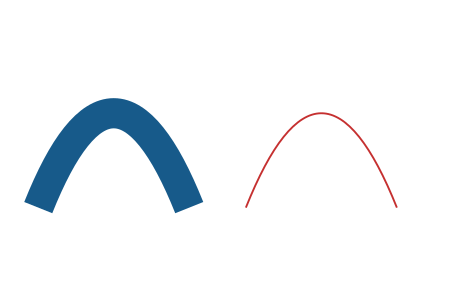
Method: authored SVG coordinates use a120 × 80 mm page and matching viewBox. Inspect the linked rendered objects at your actual delivery size. This local geometry reference is not an installed-application walkthrough or physical qualification.
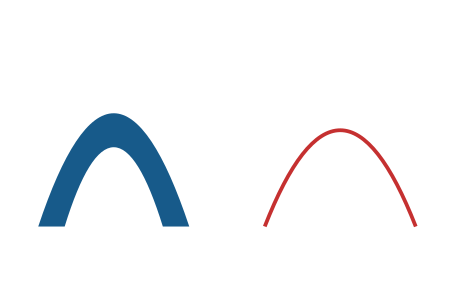
Actual ribbon and centerline receiver comparison
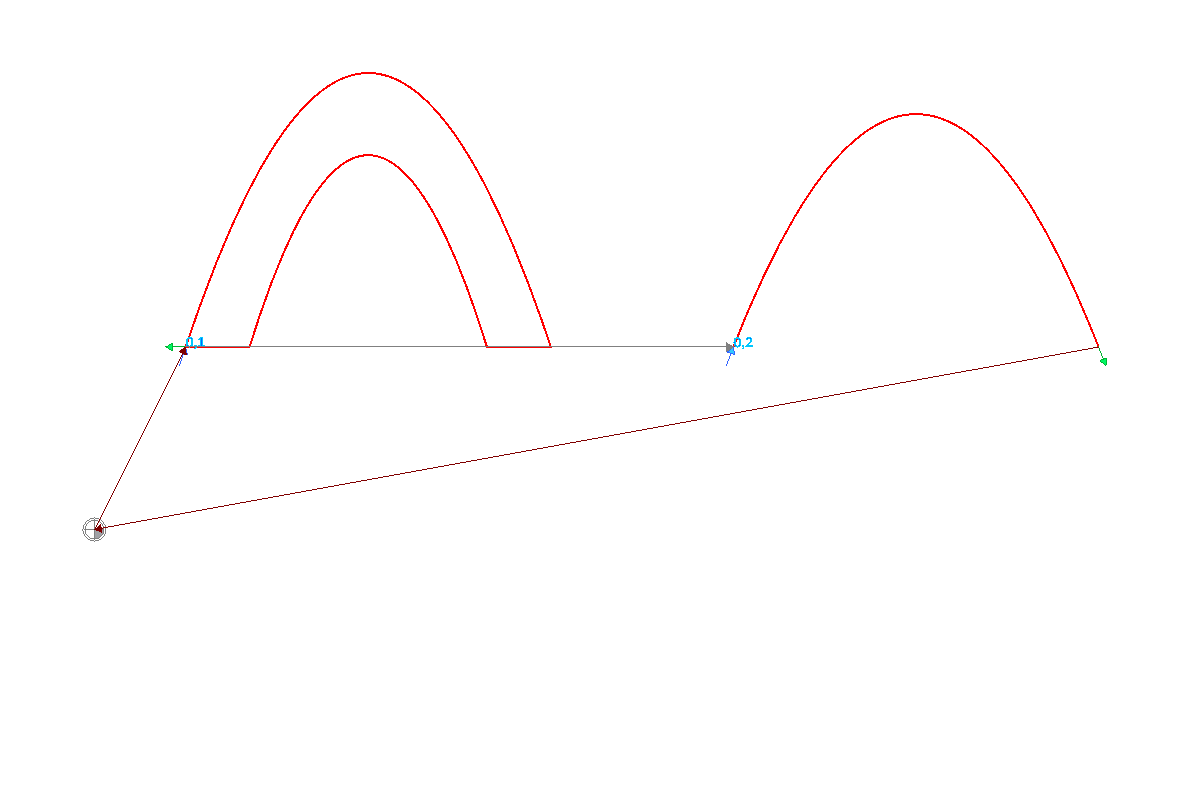
Inkscape 1.2.2 opened and exported the owned 120 × 80 mm document. DXF2GCODE 20191025 imported its millimetre contours as one closed ribbon and one open curve. These are different path tasks: the ribbon has two sides joined at its ends; the independent centerline stays open. The preview uses an illustrative 1 mm tool on the paths. It does not assign Cricut, Silhouette or laser operations, and it does not establish a material result.
Primary sources
Free Protected Preview
Protected vector preview
No account is required to create or view the protected preview. The preview accepts one PNG, JPEG, or WebP file up to 4 MiB; other source formats must be exported or converted to one of those formats first. Editable SVG export requires paid or complimentary access. Review the exported SVG in the appropriate downstream software; non-SVG formats and machine instructions require separate conversion.
Open Protected vector preview