
Convert Text to Outlines Without Losing the Editable Master
Live text, outlined lettering and a font file are different assets. Preserve editable text and verify the intended recipient before converting a copy to paths.
Identify what you actually have
Three different starting points
- Input
- Live text in an editor
- Appropriate operation
- Convert a copy to outlines if the recipient needs paths.
- What it cannot establish
- Outlines do not remain editable as ordinary text.
- Input
- Lettering in a raster image
- Appropriate operation
- Seek the original text or trace only as an approximation.
- What it cannot establish
- Tracing does not identify the exact font or restore its metrics.
- Input
- A font file
- Appropriate operation
- Use authorized font software and follow its license.
- What it cannot establish
- Tracing one word does not create a usable typeface.
| Input | Appropriate operation | What it cannot establish |
|---|---|---|
| Live text in an editor | Convert a copy to outlines if the recipient needs paths. | Outlines do not remain editable as ordinary text. |
| Lettering in a raster image | Seek the original text or trace only as an approximation. | Tracing does not identify the exact font or restore its metrics. |
| A font file | Use authorized font software and follow its license. | Tracing one word does not create a usable typeface. |
Keep text editable before outlining
- Save a version containing the live text, font information and layout. Check spelling, line breaks, kerning and punctuation before conversion.
- Check the font license for the planned use and delivery. Turning glyphs into paths does not grant new rights or settle redistribution questions.
- In your installed Illustrator or Inkscape version, use its documented text-to-path operation on a copy of the selected text. Verify the exact menu and shortcut against that version before relying on them.
- Reopen the saved copy and inspect individual glyph shapes, counters, spacing and transforms. Keep the live-text master separately so a later wording change does not require rebuilding letters.
Worked handoff: a wordmark and a changing caption
Illustrative example: a fixed wordmark may benefit from an outlined delivery copy, while a changing caption is easier to maintain as live text. Outlining both does not improve their editorial accuracy. Compare the wordmark’s small counters after conversion and keep the caption text available for future edits. Missing fonts in a receiving application call for a deliberate handoff choice, not automatic raster tracing.
Text semantics and downstream limits
SVG text uses text elements and font styling; a generic font element is not the normal way to reference a web font. Path outlines carry shapes rather than readable text semantics. Provide an appropriate accessible text alternative in the final document or web placement; the visible outlines alone do not supply it.
Cricut documents editable text among unsupported SVG upload content and instructs conversion to shapes. This is a receiver-specific requirement, not proof that outlined letters will cut correctly: https://help.cricut.com/hc/en-us/articles/360009553213-Image-uploads-unsupported-items
Embroidery still requires digitizing, stitch ordering and simulation after the artwork is prepared; a letter outline is not automatically a satin column or stitch file: https://inkstitch.org/docs/workflow/
Vectorize’s raster preview is only relevant if all you have is an image of lettering. It does not convert live editor text to outlines or recover a font file.
Actual live-text to outline comparison
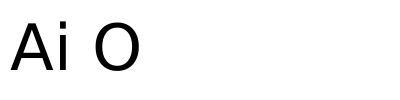
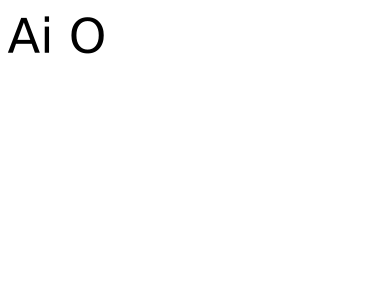
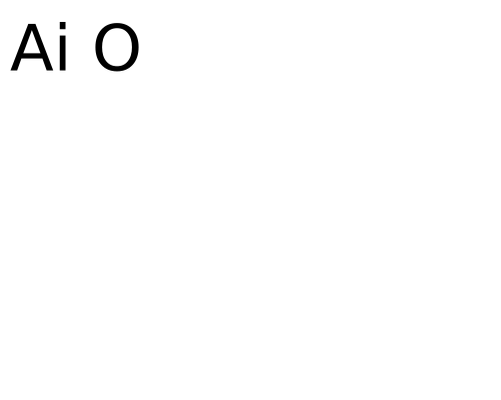
The installed DejaVu Sans font is used under its retained permission notice. Chromium printed the live wordmark to PDF; Poppler pdftocairo converted that PDF to SVG paths. XML inspection found paths and no text elements in the result. The PDF print page uses500 × 400 CSS pixels; its rounded PDF bounds produce a501 × 400 PNG at96 DPI. Poppler’s outlined SVG uses375.12 × 300 intrinsic units. Normalize page coordinates before comparing the wordmark; raw image bounds are not a spacing or scale guarantee. Keep the live master for wording edits. The figures have explicit alternative text; outlined lettering alone is not searchable or readable as text. This proves this local conversion, not an Inkscape or Illustrator menu walkthrough. Font notice: /images/seo-recovery/qualification-055/DejaVu-copyright.txt
Primary sources
On this page
Live-text handoff
Continue in your editor: preserve the editable master, check font rights and inspect a copy before outlining. This checklist does not convert text or create a font file.
Review the text handoff