
Fix a Pixelated Logo: Choose the Right Recovery Path
Check the original source and intended placement before enlarging or tracing. Interpolation adds pixels; it cannot establish what the missing detail originally was.
First distinguish pixelation, blur and compression
Choose a response to the actual symptom
- Symptom
- Blocks visible only at large display size
- What to compare
- Actual source pixels versus requested placement
- First useful action
- Use a larger original or reduce the placement size.
- Symptom
- Soft edges already visible at native size
- What to compare
- Original master versus screenshot or crop
- First useful action
- Seek an earlier export; resizing a blurred copy cannot reveal its lost edges.
- Symptom
- Ringing or blocks near contrasting edges
- What to compare
- Compressed copy versus less-compressed source
- First useful action
- Avoid another lossy save and preserve a clean master.
- Symptom
- Logo stretched rather than merely soft
- What to compare
- Source ratio versus width/height in the layout
- First useful action
- Correct the aspect ratio before changing image content.
| Symptom | What to compare | First useful action |
|---|---|---|
| Blocks visible only at large display size | Actual source pixels versus requested placement | Use a larger original or reduce the placement size. |
| Soft edges already visible at native size | Original master versus screenshot or crop | Seek an earlier export; resizing a blurred copy cannot reveal its lost edges. |
| Ringing or blocks near contrasting edges | Compressed copy versus less-compressed source | Avoid another lossy save and preserve a clean master. |
| Logo stretched rather than merely soft | Source ratio versus width/height in the layout | Correct the aspect ratio before changing image content. |
Choose source replacement, resizing, tracing or redraw
An existing vector master is usually the most direct source for a new raster export. Keep the master and render at the dimensions the recipient needs. If the raster already has sufficient pixels, correcting display size may solve the problem without tracing.
For a fixed-size PNG, the resizer offers custom dimensions and a separate capped enlargement preset. The preset applies up to 4× Lanczos3 interpolation with sharpening and a 4096-pixel long-edge cap. Oversized inputs can be downscaled. There is no AI reconstruction or scale selector in that preset.
For editable paths from a flat logo, create a protected raster preview from PNG, JPEG or WebP and compare the mark. Vectorize uses an automatic trace; there are no user trace settings to adjust here. After successful authorization, inspect the SVG in an editor. Tracing can reproduce a compression artifact or guess the wrong contour.
If small lettering or a distinctive mark is no longer legible, obtain a reference or commission deliberate redraw. Neither enlargement nor tracing can verify an unknown original. Do not approve plausible invented lettering as restoration.
Worked size calculation and a rejection check
Illustrative arithmetic: a 400-pixel-wide logo placed at 800 display pixels spreads its existing samples across twice the width. A resizer can generate 800 pixels, but it has not observed twice as much design information. For a four-inch placement, 400 ÷ 4 = 100 source pixels per inch; this is a calculation, not a universal print pass/fail threshold.
Compare the original and candidate at the intended size. Inspect letter counters, corner angles, stroke widths, halos, fringing and transparency. Reject a candidate that looks sharper but changes the mark. A matched comparison is required before recommending enlargement followed by tracing over either action alone.
Save the right derivative
Keep the original and avoid repeated JPEG re-encoding. A PNG copy does not remove an opaque background or undo earlier JPEG loss. Vectorize’s authorized vector export is SVG; EPS, AI and machine formats require separate compatible software. Let the recipient specify dimensions, format and production checks rather than assuming SVG or one resolution suits every job.
Observed degradation and actual enlargement


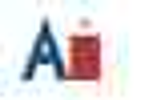
The degraded source was made by reducing the owned original to40 × 25 and saving JPEGquality25 with4:2:0 subsampling. The actual enlargement callback returns160 × 100 PNG; it does not retrieve the original. Compare color fringes, dot and counter at the same displayed size and retain the original when available. A separate1500 × 1000 input produces4096 × 2731 under the actual long-edge cap, not6000 × 4000.
Observed at the same160 × 100 placement: the enlargement remains blurred, with gray/color fringes around the A, softened counter edges and a smeared i-dot. The original has crisp straight edges and a clear dot. Reject the enlargement as a replacement for that available original; retain it only if that degraded appearance is acceptable for the actual placement.